
How to log in to SCR111
Open the public site, select Login and enter the registered mobile number or username followed by the password. The form indicates a password length of 6-20 characters.
- Check that the address begins with HTTPS.
- Enter the mobile number or username used at registration.
- Enter the password and select Login.
- Sign out when using a shared device.
The SCR111 login page is reached from the public homepage or the wallet panel. It contains two main fields: Mobile No / Username and Password. This allows an account holder to use either the registered number or the username associated with the profile.
After entering both values, select Login and wait for the account page to load. Repeated attempts with an incorrect password can complicate access, so use the recovery option rather than guessing. On a shared computer, do not save the password in the browser and sign out when the session ends.
SCR111 login screen
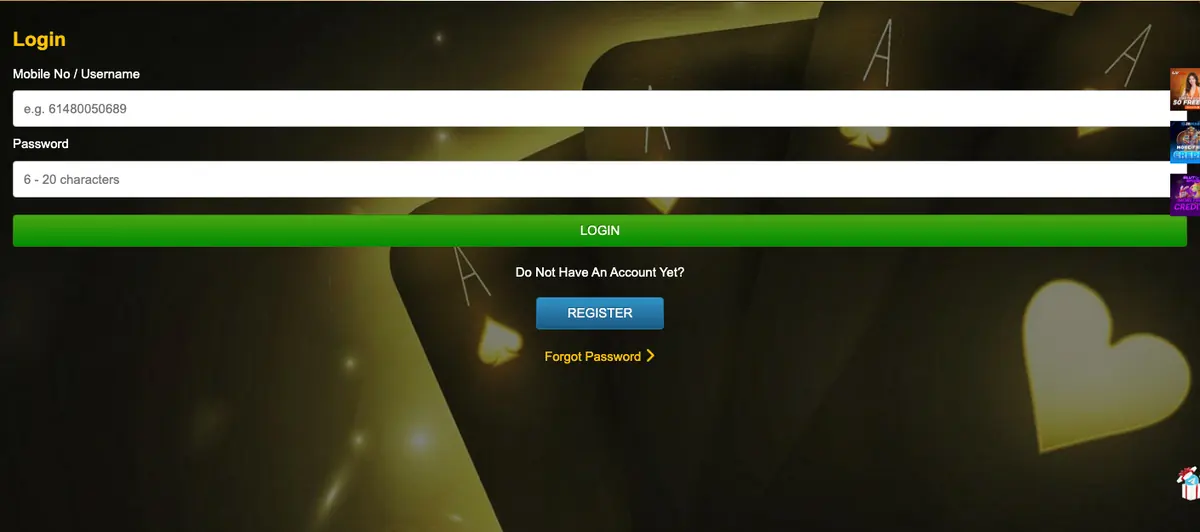
The login screen keeps the SCR111 logo and navigation visible, allowing a user to return to the homepage, promotions or live chat. The form itself does not ask for a bank PIN, card PIN or complete payment credentials. An unexpected request for those details should be treated cautiously.
The page also contains a Register button for visitors who do not yet have an account. Creating a second profile to solve a login problem may conflict with account rules; password recovery or verified support is the safer route for an existing user.
Forgotten password
Use the Forgot Password link on the login page. Do not share SMS codes or passwords with anyone claiming to be support. If recovery fails, use the live-chat shortcut on the same verified domain.
The Forgot Password link appears directly below the login controls. Follow the recovery flow using the registered contact information. Make sure the recovery page remains on the expected HTTPS domain and close any unrelated pop-ups before submitting information.
SMS codes are temporary security credentials. They should only be entered into the recovery form that requested them. SCR111 support should not need the user's current password, and no legitimate recovery process requires remote access to the user's device.
Common login problems
| Page does not load | Check the connection and exact domain, then retry in a current browser. |
|---|---|
| Password rejected | Check case and spacing or start the official reset flow. |
| SMS unavailable | Confirm the registered number and contact support through the verified site. |
| Unexpected redirect | Stop and verify the URL before entering account details. |
Browser problems can often be separated from account problems. If the form does not respond, refresh once, update the browser or test a private window with extensions disabled. If the password is rejected across devices, use the reset function rather than clearing unrelated account data.
Mobile numbers should be entered in the format expected by the form. Users returning after changing their telephone number may need assistance from the account-support channel. Keep any support reference number and avoid sending identity files to addresses that cannot be confirmed from the SCR111 website.
SCR111 login on mobile
The same login fields are available on mobile: registered number or username, followed by the password. The form stretches across the screen and keeps password recovery and registration links directly below the Login button. Use the phone's normal browser rather than opening the form inside an unknown messaging application.
If a mobile keyboard adds spaces or changes characters automatically, check the username and password before submitting. A stable connection helps avoid uncertainty about whether the login request was completed.
Login security
A unique password reduces the effect of a password leak from another service. Do not use an easy sequence, the account name or the full mobile number. Browser password managers can create and store a stronger value when the device itself is protected.
Unexpected login messages, unfamiliar balance activity or password-reset codes that were not requested should be investigated promptly. Open SCR111 through the known address, change the password if access remains available and contact the live support channel.
Contacting SCR111 about account access
When recovery tools do not solve the issue, explain whether the problem concerns the username, mobile number, password, SMS delivery or a locked account. Support may ask for information that identifies the account, but it should not need the existing password or a live SMS code.
Keep the support reference and note the time of the request. If identity verification is required, confirm the secure upload route on the website before providing files.
Frequently asked questions
What can I use to log in to SCR111?
The form accepts a mobile number or username together with the account password.
How long is the SCR111 password?
The public login form displays a 6-20 character prompt.
Can I reset my SCR111 password?
Yes. A Forgot Password link is available beneath the login form.